
Whether you want to set salon opening hours, manage your team's holidays or add custom shifts, you can do this within the "Team" section. This is the most efficient way to plan and schedule shifts, and to manage the availability of each staff member.
First things first: set your opening hours
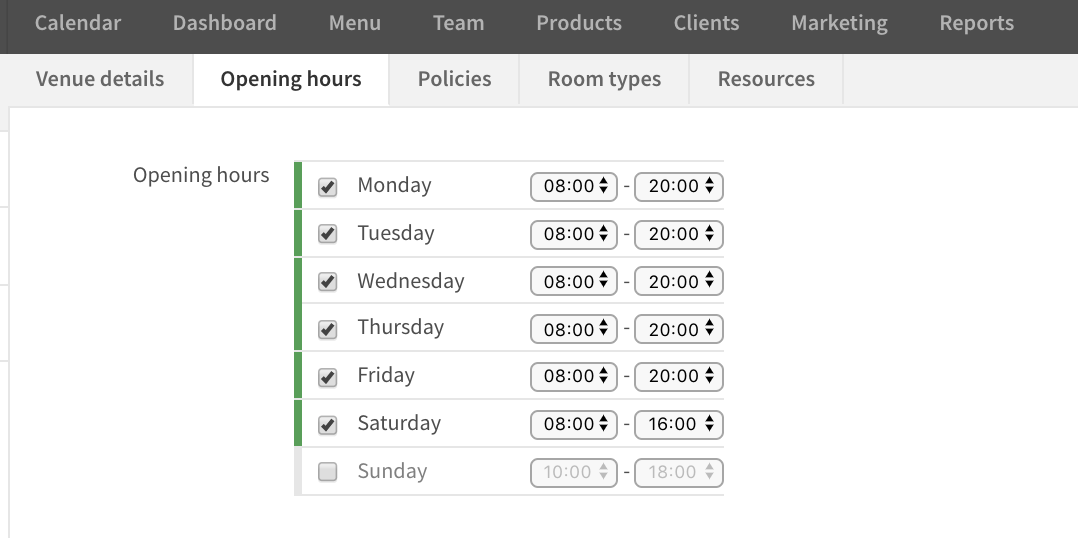
The first step to properly managing your availability is by adding opening hours. To set them, access Connect from your computer and click on "Settings” (the gear icon at the top right). Then select "Opening hours" from the top bar.
Create weekly shifts for each staff member
Each employee may have different work shifts than their colleagues - some work in the morning, others only in the afternoon or on weekends. With Connect it is possible to create a weekly schedule that will repeat over time, until it is changed or replaced by new hours. Here are the steps to follow to create one:
open Connect from your computer;
access the team members’ rota (by clicking on the "Team" tab);
click on a team member’s schedule, and then on "Change schedule";
Select working days and set working hours for each day;
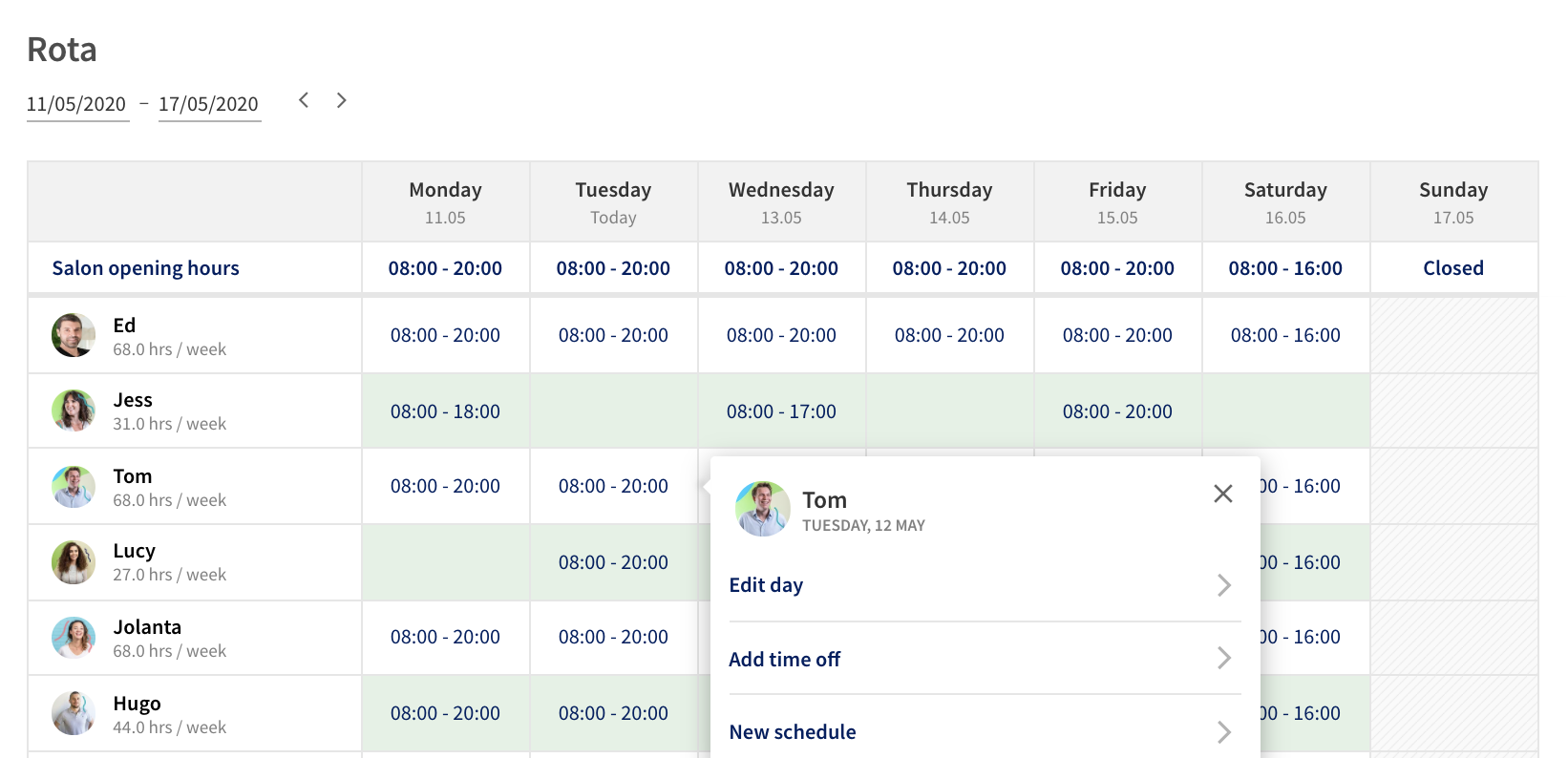
Each new working time is marked in green. This is a graphic indication allowing you to immediately see which team member has a personalised and regular schedule.
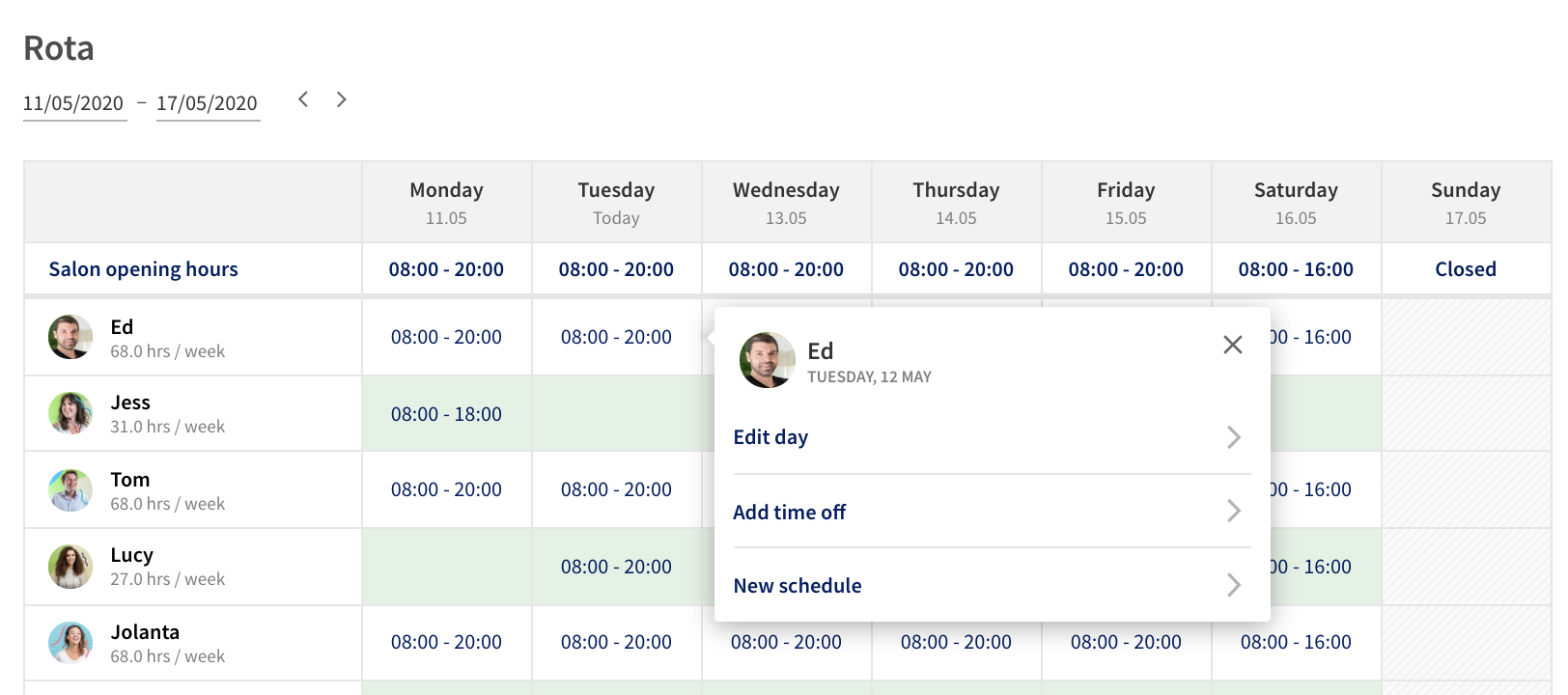
If you need to change just one of the set times, click on the highlighted time and then on "Edit day". From this section, it is possible to edit the opening hours of the salon or add new hours for this staff member.
Changing times exceptionally
Not all days are the same and there may be setbacks that require one temporary timetable change for one or more days (for example if an employee has had an unexpected event or is on sick leave).
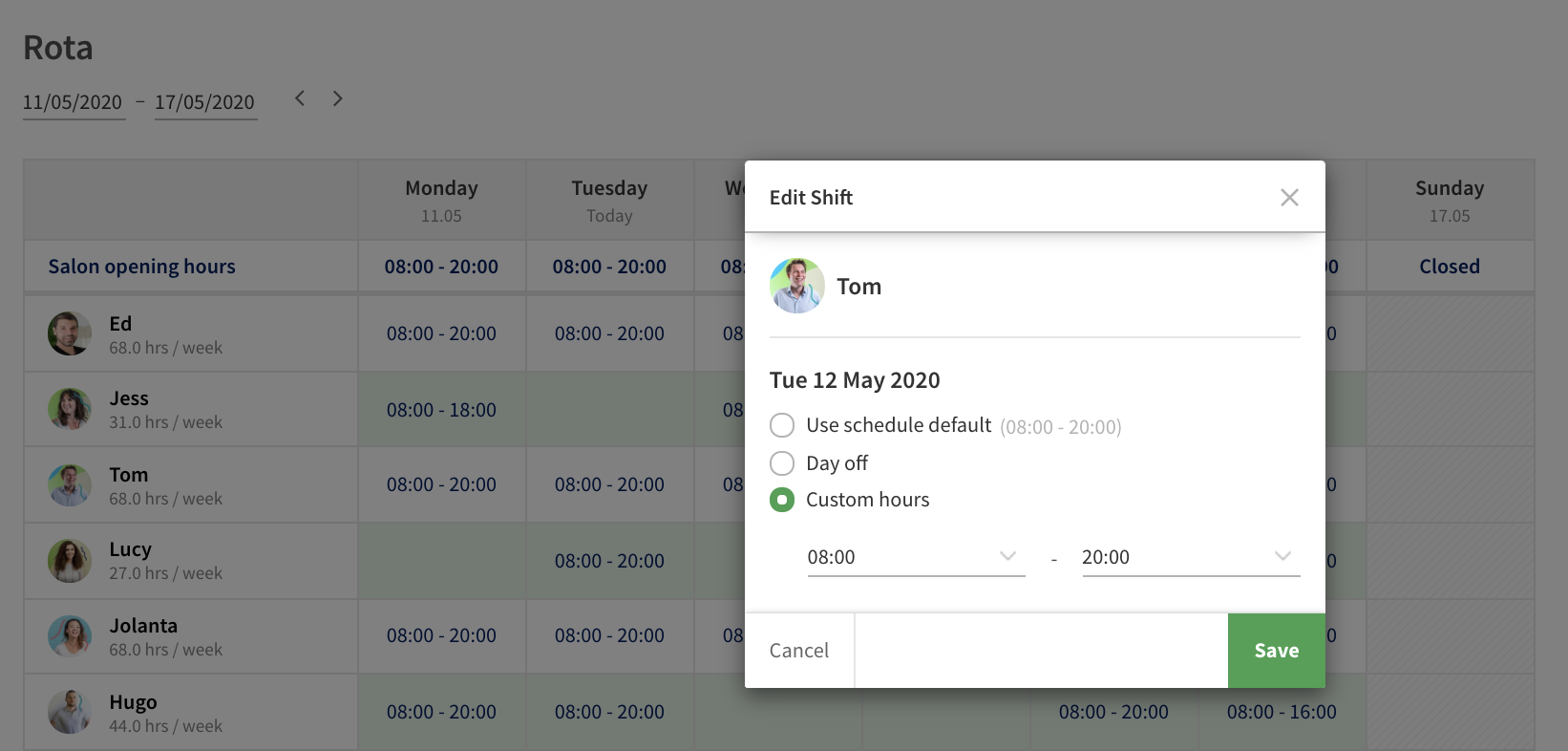
To set up a change of working hours as an exception, click on the day you want to change for the specific team member and then on "Edit day".
Suggestion: If you have set a custom time but the calendar view for the team member is still blocked, check that that day hasn't already been set as non-working. To do this, access the Connect calendar and click on the day. If you see the "remove day off", this means that it has been added as a non-working day.
Easily assign holiday days and time off
If an employee is on holidays and you want the calendar to be updated, the easiest way to do this is by clicking on the desired day from the calendar and selecting the option "Edit day" and then “Day off”. Indicate the start and end dates of the holiday period. To modify or delete the set time frame, click on the "+" and choose "Remove day off".
Was this article helpful?