
The Waiting List feature in your Treatwell Booking Widget is a valuable tool for managing client interest and maximizing your booking potential. It allows clients to express interest in booking an appointment when your schedule is full, ensuring that you don't miss out on potential business.
By utilizing the Waiting List, you can:
Increase your booking potential by converting interested clients into appointments.
Reduce the likelihood of lost business due to full availability.
Improve client satisfaction by providing a clear way to express interest.
Stay organized and manage client requests efficiently.
Things to note:
The Waiting List is automatically enabled for all partners using the Booking Widget.
Clients can register for the Waiting List for a specific day when that day is fully booked for their selected service(s).
The Clients’ service (or treatment) preferences are saved as part of their waiting list registration for that date.
The option appears only when your venue is open (according to your Connect Opening Hours) but the calendar is fully booked.
Clients need to provide their contact information when joining the Waiting List.
Clients can sign up for the waiting list a maximum of one time per day at each salon. Each location has a daily waiting list capacity of 100 registrations per day.
How do I view the Waiting List entries?
Go to the Connect Calendar.
A notification will appear above the calendar when there are Waiting List registrations for the day or week.
Click the notification to view all Waiting List entries.

How do I disable the Waiting List?
If you prefer not to use the Waiting List in the Booking Widget, you can disable it.
Log in to your Treatwell Connect account.
Navigate to Settings (top right corner).
Select Online Bookings > Settings.
Disable the Waiting List feature.
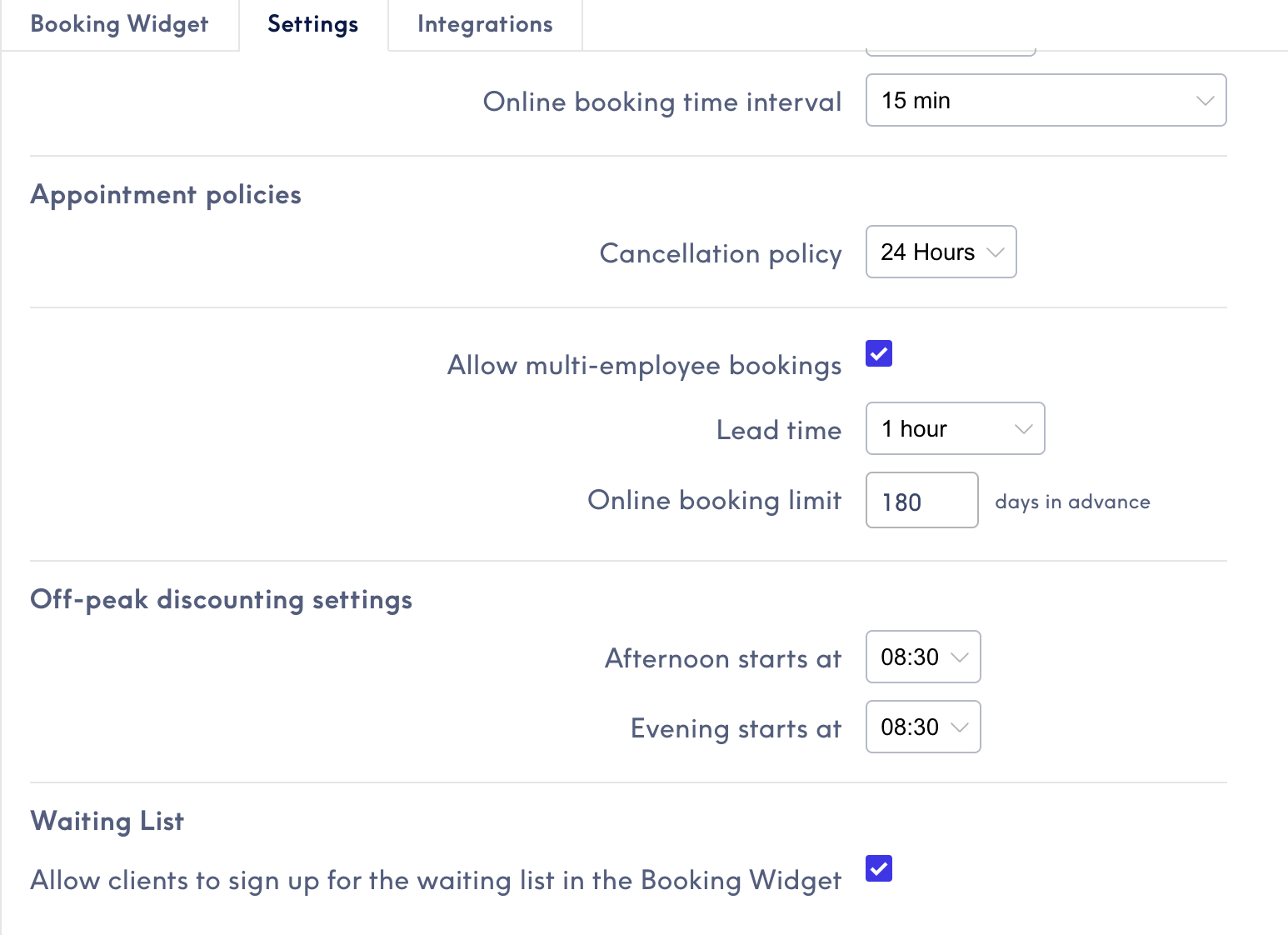
Note: Disabling the feature here, only disables the widget feature. You can still access and use the waiting list from within the connect calendar.
How do I place the Waiting List in the Booking Widget?:
The Booking Widget provides a unique link for clients to book appointments directly through your business.
Share this link on your social media profiles or website.
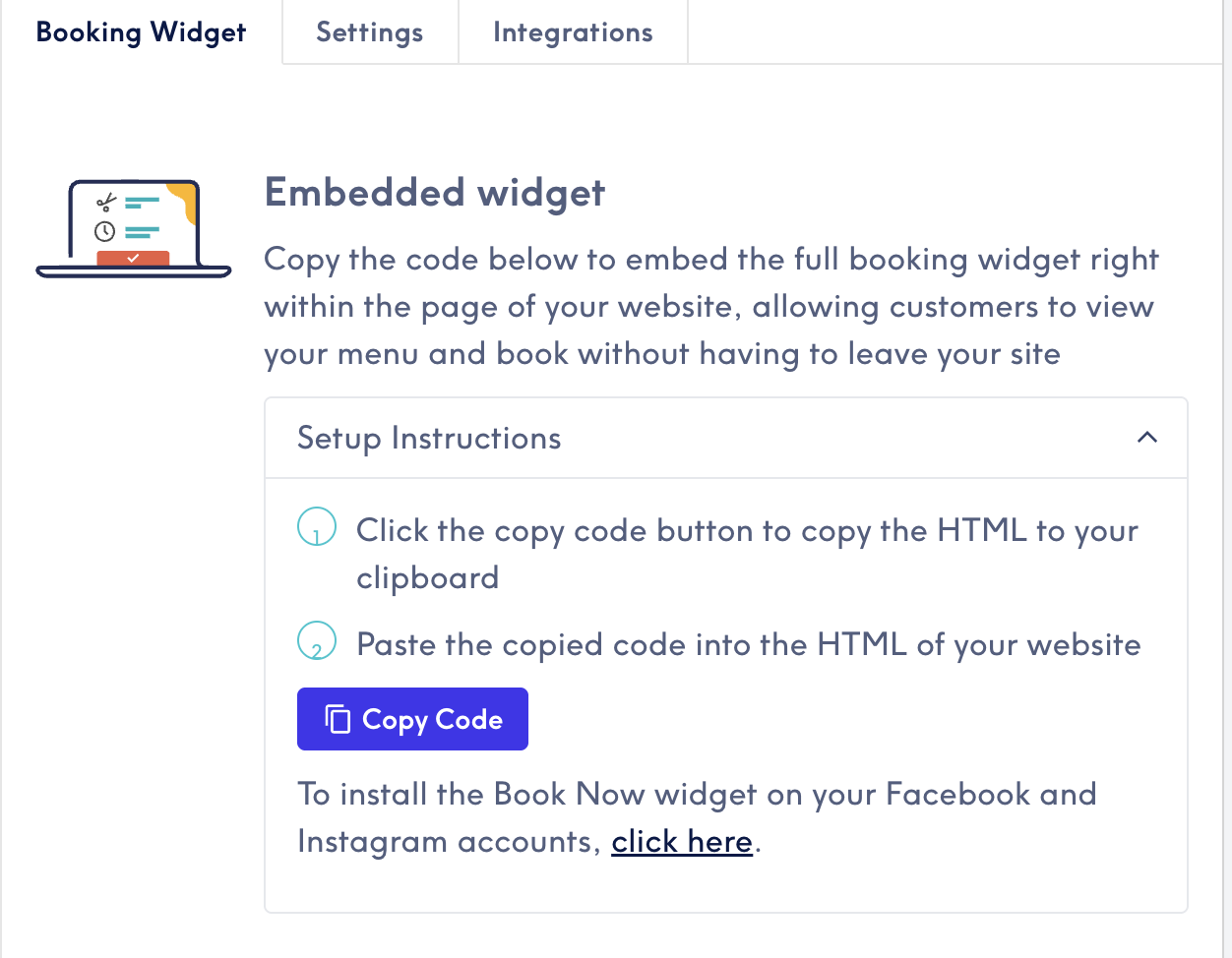
To install the widget onto your website:
Navigate to Settings in Connect.
Click Online booking, and then go to the Booking Widget tab.
Click Setup Instructions and then the button to copy the code.
Paste the URL code into the backend of your website.
Related articles:
For detailed information about the Booking Widget: "What is the Booking Widget?"
For step-by-step instructions on setting up the Booking Widget on your website: “How do I set up the Booking Widget?”
For comprehensive guidance on managing the Waiting List, including inviting clients for appointments: "How do I manage and utilise the Waiting List in Connect?
Was this article helpful?