
How to add team members
Go to Connect on a desktop
Click "Team" at the top of the page
On the left, click "Team" again
Click "Add a team member" at the bottom of the page
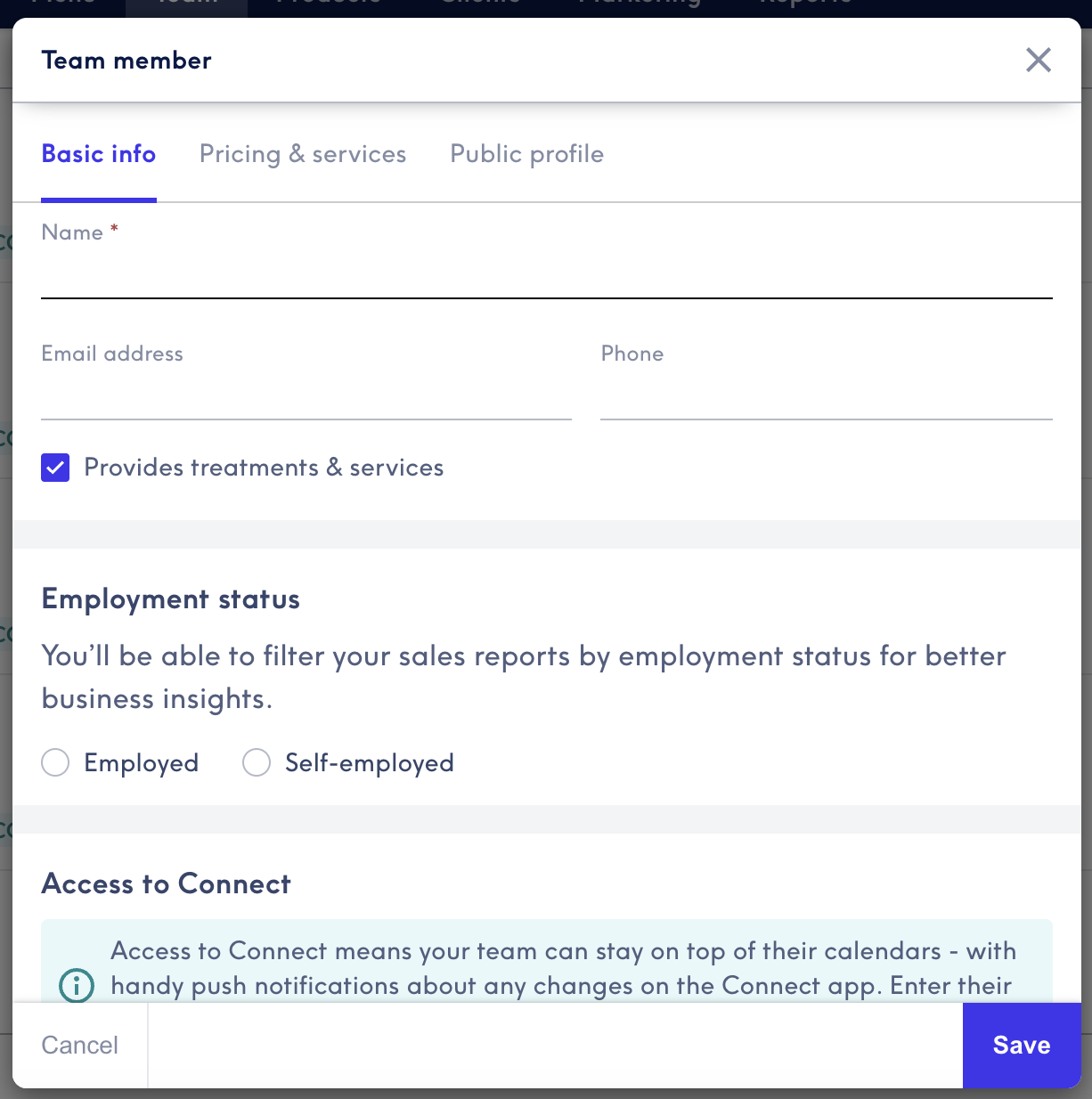
To start, add the name of your team member.
Adding an email address and phone number will allow them to log in to Connect
Select whether they're self-employed or employed (so you can filter your sales reports)
You'll also need to choose which permissions you want them to have in Connect
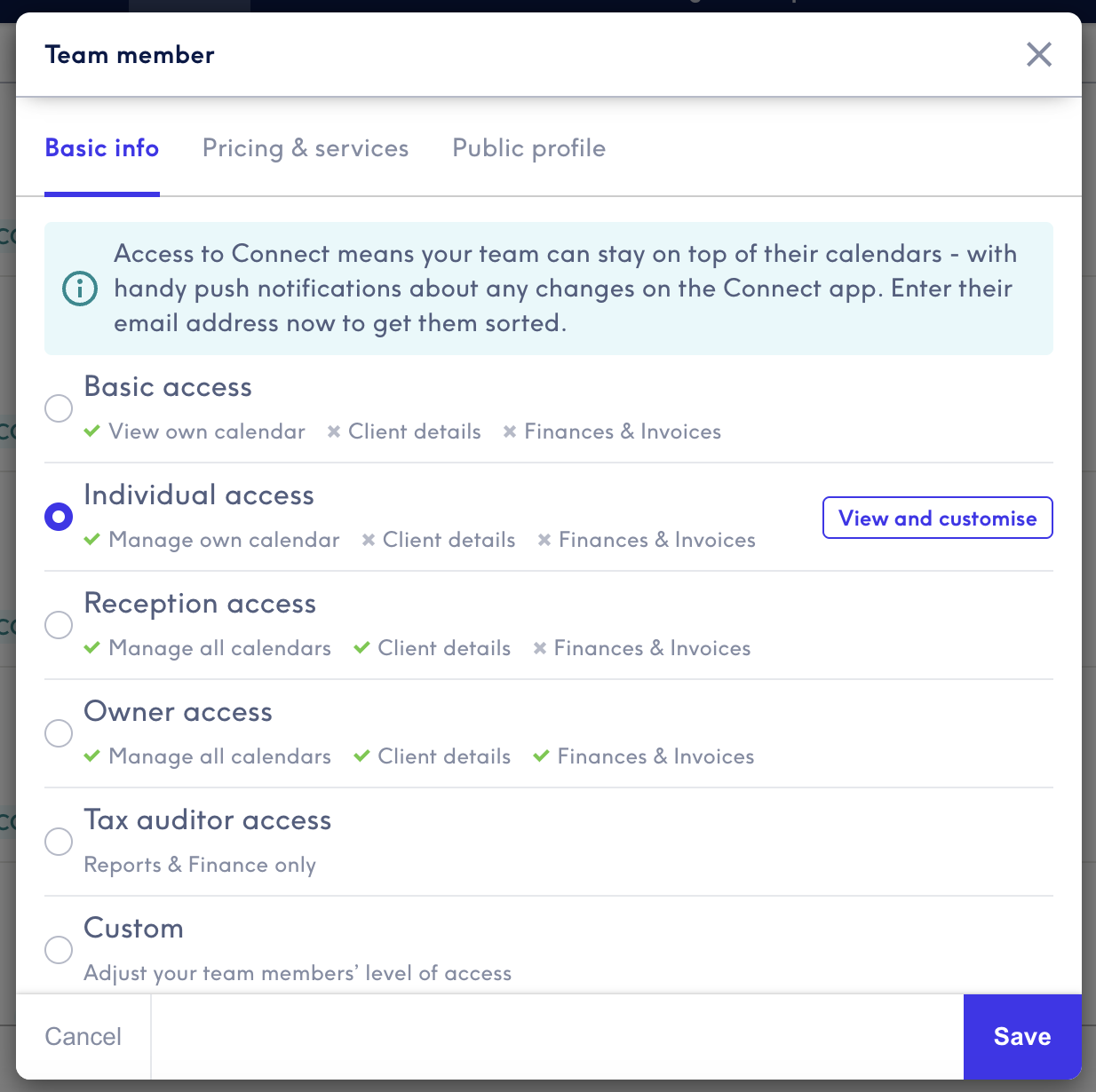
Top permissions tip: Basic and individual access are popular levels for general team members, as they can access their own calendars but don’t have viewing permissions into confidential aspects like finances or client contact details.
Once you've added this team member, they'll be sent an automatic email asking them to create their password and set up their profile.
Assign services and pricing levels
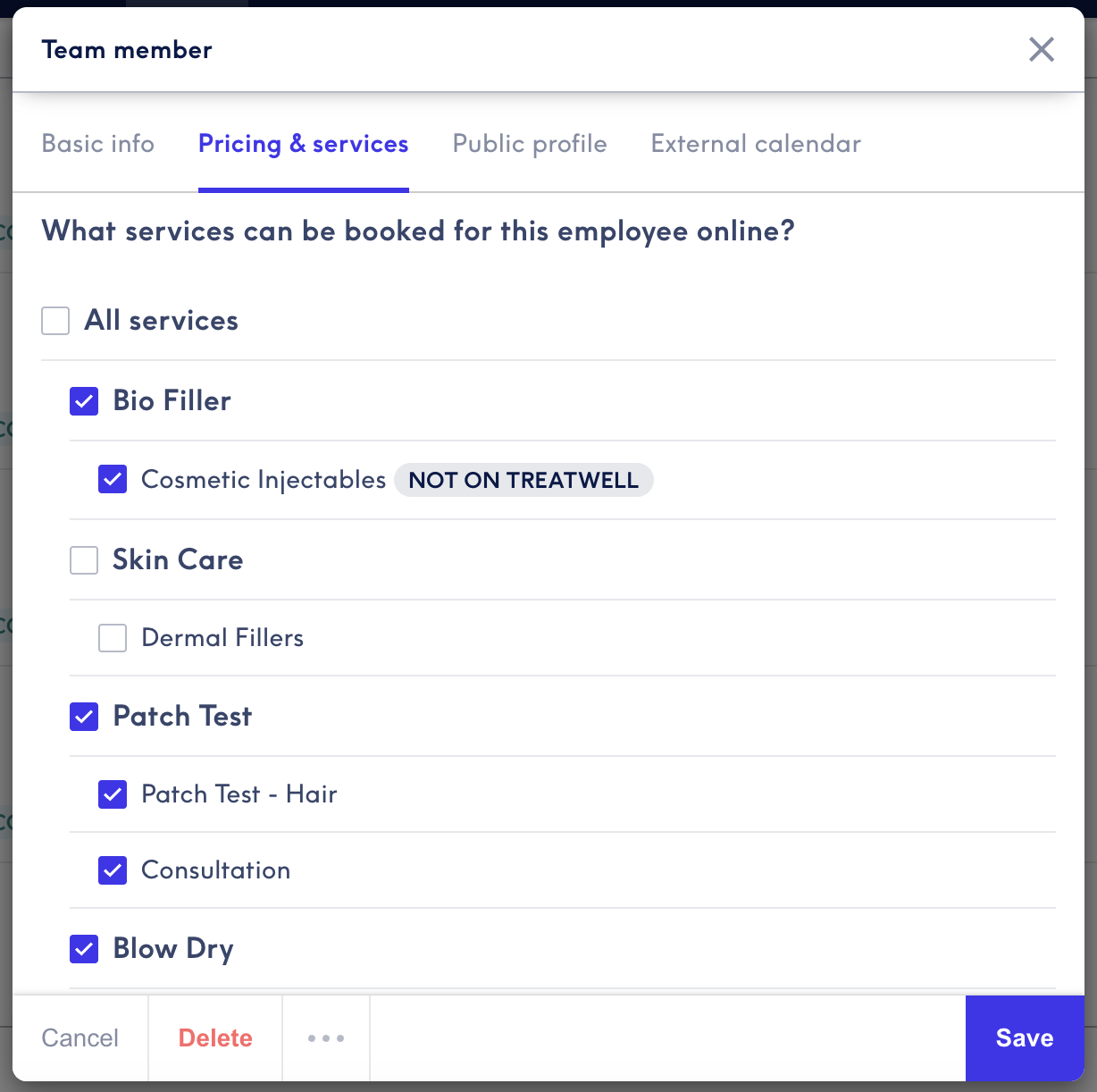
Before you save your team member, click on ‘Pricing & Services’ next to ‘Basic info’ at the top of your current tab.
Choose your team member’s ‘pricing level’ (if you charge different prices depending on their seniority level).
Next, select the services your team member can provide customers - the services available are from your salon’s menu already on Connect.
Click ‘Save’ in the lower right-hand corner. Congratulations, your team member has been successfully added!
Control the order that your team appear in
If you'd like your team members to appear in a certain sequence in your calendar (and when a customer is choosing their team member in the booking process) you can control this in Connect:
Go to your list of team members in the 'Team' menu
Hover your mouse over the team member you'd like to move
Click and drag their row further up or down the list
Download the Connect App
Once you have saved your team member, an email is automatically sent to them to set up their password. Make sure they download the Connect App, so they can:
Have 24/7 access to their schedules, directly from their phones.
Update their public profile sections (edit their bios, add/change photos and upload a portfolio of their own work.
Receive push notifications about their calendars, keeping you and them in the loop, 24/7.
How to remove a team member
Sometimes, you may need to remove a team member from Connect – and that's also easy to do. Before you remove them, make sure all their appointments have been moved to other specialists in your team.
Go to 'Team' on the main menu
Click on the team member you wish to remove
Remove their email address from their profile and press save
Go back to their profile, and click the 'Delete' button.
Was this article helpful?